

 286
286 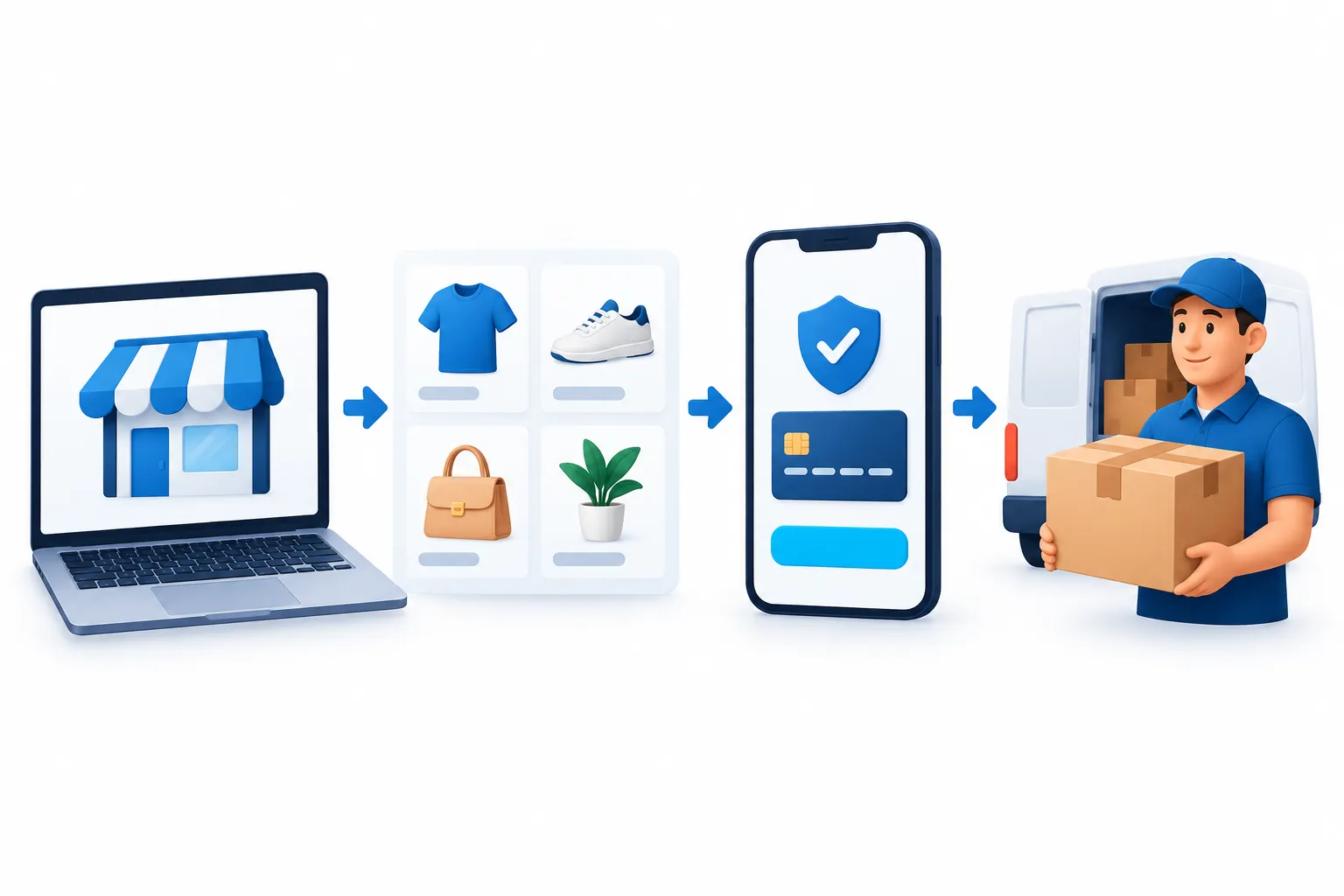
You can create an online store from scratch using a clear process: define your product range and order processing, choose a platform, create a catalog, enable payment and delivery, and then go through the customer journey with a test order. It's too early to start with design or choosing a plugin: first, decide what you're selling and to whom, where you'll store inventory, and who will respond to the customer if payment or delivery fails.
This guide is designed for self-starters in Ukraine. It will help you choose between a builder, a SaaS platform, or WordPress with WooCommerce, prepare product cards, and test your store before launching. If you already have a product range, follow the sections like a checklist. If you don't have a store yet, first define your minimum product selection and order processing rules.
Separate three tasks immediately. The first is to create a working storefront where customers understand the offer. The second is to ensure order fulfillment: payment, availability, packaging, and delivery. The third is to attract customers and measure results. A beginner's mistake is to perfect the storefront before the second and third stages are tested. Launch a minimal but reliable store: fewer products, but with accurate data and a proven process. Then expand the product range based on customer inquiries and actual demand.
To test, create a single page with your readiness criteria: what needs to be working before launch, who checks it, and where the results are recorded. This record helps you remember small details—notifying a manager, an address error, or a link to the return policy—while focusing on the main page design.
What to prepare before creating an online store
Products, audience, and order processing scheme
Make a list of the products you're actually ready to sell: name, variant, price, available stock, photo, dimensions, and delivery restrictions. Separately mark items that the supplier ships to order. The buyer should understand what's in stock and when the item can be received. If this data is currently maintained in a spreadsheet, assign someone to regularly verify it with the store.
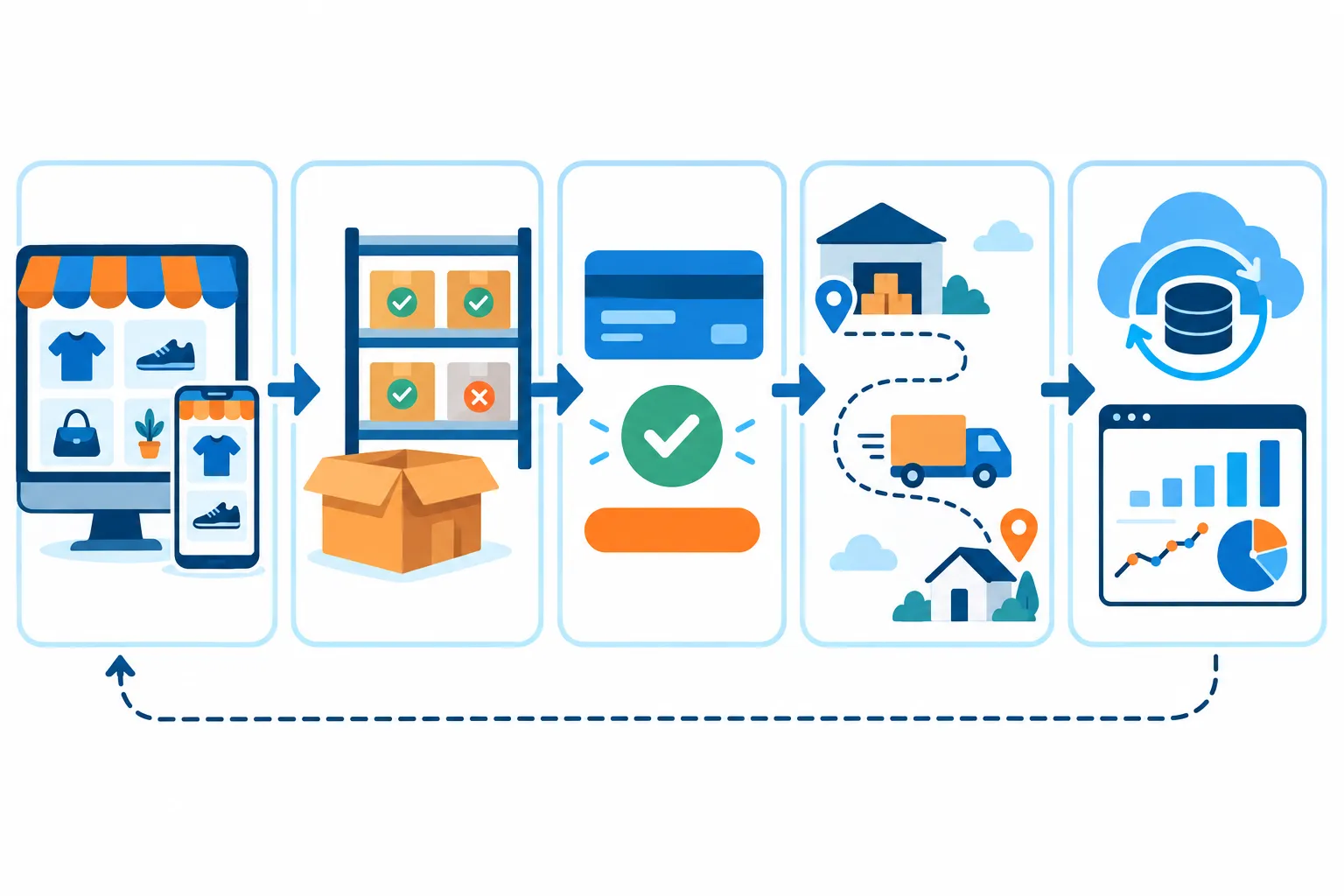
Describe the order flow from clicking the "Checkout" button to the package being handed over to the carrier. Who receives the notification? Who verifies payment? What happens if the item is out of stock? How does the buyer find the tracking number? The answers will determine which platform features are needed from the start and which can be added later. For example, automatic inventory synchronization is important for frequent product changes, but for a small, stable storefront, manual updates may be sufficient.
Consider typical customer questions: is the size suitable, can I pick up my order in my city, what payment methods are available, can I return the item, and how to contact the seller. These questions will guide your catalog structure and product card content. Don't copy your competitor's menu entirely: categories should match your product range and help customers quickly narrow their choices.
What materials and data will be needed?
- Domain name and access to the registrar's account; if you already own the domain, check who has management rights.
- Logo, corporate colors, contact information, company information, and a clear way to contact us regarding orders.
- Product photos, specifications, options, prices, and inventory information.
- Payment, delivery, return, and personal data processing policies aligned with your actual practices.
- Access to the payment provider and carrier, if required for integration.
Preparing these materials in advance speeds up online store creation more than choosing a ready-made theme. A blank template won't solve the problem if the product data isn't accurate and the shipping policies haven't been defined yet.
How to choose a platform for an online store
The platform should be appropriate not only for the size of your catalog but also for the amount of technical work you're willing to undertake after launch. Compare specific plans and features based on the current terms of the chosen service: integrations, data export, delivery, and payment settings are subject to change. This diagram is helpful for initial selection.
| Criterion | Constructor or SaaS | WordPress + WooCommerce | Custom development |
|---|---|---|---|
| Control over data | What rights to settings and downloads does the plan provide? | Who has access to the site, data and backups? | Who owns the code and data under the contract? |
| Export | Check the upload of goods and orders before paying the tariff. | Check the download with the selected modules. | Fix the download formats in the task. |
| Payment and delivery | Complete your order using the required methods in the demo store. | Check compatibility of specific modules. | Check the availability of the required APIs and integration conditions. |
| Cost for 12 months | Tariff, applications and setup: request a quote. | Hosting, extensions and support: request a quote. | Development, infrastructure and support: request a quote. |
| Service | Who fixes the failure according to the terms of service? | Who updates the site and checks the backups? | Who maintains the system under the contract? |
| Applicability | Does the demo cover your order scenarios? | Are there resources for administration? | Is it possible to close the task with ready-made functions? |
Constructor or SaaS platform
If you're considering a website builder or SaaS platform, find out who's responsible for the server, updates, and backups before purchasing a plan. Create products and place an order in the demo store. Check whether you can upload products and orders, change the URL structure, enable the desired carrier and payment method, and what happens when you switch to a different plan. The answers depend on the specific service and contract.
If you're comparing Shopify, Horoshop, or Cartum, don't transfer the features of one service to another: check each one's demo store, available payment and shipping methods in Ukraine, data export terms, and support. Run an identical test order and note what works without additional modules and what requires configuration. The platform's name alone doesn't confirm its suitability for your process.
WordPress and WooCommerce
WooCommerce is suitable for those who need a custom WordPress store setup and the ability to select extensions for specific tasks. WooCommerce documentation Products, delivery zones, payment methods, and order management are described. Just because a feature is available in the system doesn't mean it's already configured for your store: every combination of payment, delivery, and product type needs to be tested.
WordPress requires hosting, backups, and core and plugin updates. If you plan on having multiple product variations, filters, and integrations, figure out which one you need in advance. WooCommerce hosting. Choose it based on your store's actual requirements and support options, not just the marketing promise of "compatible with WordPress.".
When is custom development needed?
Custom development is justified when important processes cannot be reliably implemented in an existing platform: complex pricing rules, non-standard ordering logic, multiple warehouses with special reservation rules, or integration with an internal company system. First, describe these processes and check whether they can be addressed with standard functions or an existing module. Otherwise, you could waste resources on a custom system without testing the sales model itself.
The practical selection criteria are simple: take three typical orders and try them out in the platform's demo version. One order is for a standard, in-stock product, the second is for a product variant, and the third is for non-standard delivery or payment. After placing an order with a variant, check the price, selected feature, and inventory changes for that particular variant. If the administrator and buyer can run through the scenarios without workarounds or manual corrections, the platform is suitable for testing the idea.
To avoid choosing a platform blindly, ask the supplier five questions. Is it possible to export the catalog and order history in a transferable format? How do product variants and inventory work? Which payment and logistics modules are available for your country? Will page URLs be preserved if you change the template? Who fixes order processing errors, and how quickly can I get help? It's best to check the documentation and demo store for answers, not just the pricing table.
Calculate the cost of ownership for the same period: launch + 12 × (platform or hosting plan + paid modules + regular support) + domain + one-time integrations. For SaaS, enter the current plan and add-ons; for WordPress, enter hosting, extensions, updates, and support; for a custom solution, enter development and maintenance. For example, just to illustrate the arithmetic: launch costs 10,000 UAH, monthly costs of 500 UAH for hosting and 300 UAH for support, domain 500 UAH. First year: 10,000 + 12 × (500 + 300) + 500 = 20,100 UAH. These are approximate figures, not market prices or a contractor's offer. Fill in the calculation with your own terms and conditions of the providers and also compare the composition of services.
Domain, hosting, and basic store setup
Website address, security and speed
Choose a short address that's easy to dictate and spell without errors. Check who owns the domain and who can renew it after a year. For a SaaS service, clarify the procedure for connecting your own domain; for WordPress, prepare hosting and panel access. Keep accounts separate from correspondence with contractors, grant permissions as needed, and enable additional login security if the service offers them.
Before uploading your catalog, check HTTPS, backups, and the availability of your admin panel. On WordPress, agree on who updates the theme and extensions, what to do in case of incompatibility, and how to restore the site. Without this, your store may appear ready, but stop working after the next update.
- Connect your domain to your chosen platform or hosting and check the primary website address.
- Enable HTTPS and check out your catalog, cart, and checkout without browser warnings.
- Set up backups and perform test restores in a separate test environment without affecting the production store.
- Set up a working address for order emails; send a test notification to the buyer and manager.
- After each setup, repeat the test order to check the entire path.
Evaluate speed on pages that customers actually use: category, product page, cart, and checkout. Don't start by installing several heavy extensions "just in case." Add features one at a time and test the cart after each change. On a phone, legible photos, clear pricing, and a checkout form without unnecessary fields are especially important.
How to build a catalog and product cards

Categories, characteristics and filters
Categories answer the question "what am I looking for," while filters answer the question "which one." First, organize your product range into several clearly understandable groups. Then, decide which characteristics really help you choose a product: size, compatibility, material, brand, or purpose. Don't create a separate category for each combination of characteristics; this will confuse the menu and increase the number of similar pages.
For each category, it's helpful to pre-define a name, a brief explanation of the product range, and a path to adjacent groups. If there are many products, consider breadcrumbs, catalog search, and sorting. A detailed analysis is available in the article on how category structure and interlinking. Clear navigation is sufficient at the start; a complex system of landing pages for all filters is added after demand analysis.
What to add to the product card
The product card should help you make a decision without contacting support. Provide the exact name, price, availability, options, key specifications, dimensions or configuration, delivery terms, and how to ask questions. Show photos from multiple angles where this can influence your decision. Avoid conflicting descriptions for identical options and avoid leaving the old price in the text after changing the price in the product field.
Check that the product variant updates the correct price and availability, and that the buy button adds the selected variant to the cart. If the supplier provides photos or specifications, verify them with the actual product. Determine how you will handle temporarily out-of-stock items: hide them, show a backorder date, or offer an alternative. Don't promise a date you can't confirm.
If you're importing your product range from a spreadsheet, start with a small test batch. Check the encoding, categories, images, variants, and duplicates. After importing, open several product cards as a customer, not just in the admin panel. This will help you identify empty fields, broken images, and technical names that are easy to miss in the file.
For the catalog, set a data quality rule: each product has one clear title, one current price source, a selected category, and all required characteristics. If the same property is recorded as "blue," "sin.", and "blue," the filter will behave unpredictably. Coordinate the dictionary of values before mass importing. When updating your product range, check not only new product cards but also products that are no longer available or have changed variants.
Compress photos to a reasonable size and make sure they are legible on a phone. For items with important details, prepare a general view and a close-up shot. Don't substitute the actual contents with a promotional image without explanation. If the image shows multiple items, clearly state what's included in the order. This reduces uncertainty during the selection process and makes the product card more useful.
How to enable payment
Payment methods and choosing a provider
Buyers need to see available payment methods and the final payment amount in advance. Choose options you can realistically process: online payment through a provider, cash on delivery, or invoice, if this scenario suits your business. Verify service availability, connection terms, and fees directly with the provider for your company and platform.
For online payments, find out if there's a ready-made module for your platform, how testing is conducted, and where notifications about transaction results are sent. If you're considering LiqPay, study official API documentation, the connection terms for your company, and the instructions for the selected module. Check how to confirm payment according to these terms and link it to the order. The mere presence of documentation does not guarantee connection availability for every business.
Don't rely on the "Thank you for your order" page as proof of receipt. Verify the final status using the method specified in your payment provider's documentation and check the results in your account. Set up a rule for when the manager starts processing: after payment confirmation, after manual verification, or when selecting cash on delivery. For each payment method, check the compatibility with the selected delivery method.
How to check a test payment
- Create a test product or order with a clear amount and complete the checkout process on your phone or computer.
- Check for successful payment, refusal, and interrupted transition if the provider's test mode allows such scenarios.
- Compare the status in the store, your payment service account, and the notification to your manager.
- Check if a repeat order is created after refreshing the page or clicking the button again.
- Make sure the buyer receives a clear message about the outcome and knows how to seek help.
Only then proceed to the working settings. Don't test the new payment module on a real customer for the first time.
How to organize delivery
Zones, tariffs and methods of obtaining
Start with geography: where you deliver, what items you can ship, and whether in-store pickup is available. For each method, determine how the cost is calculated, who pays the cost, what information the buyer enters, and when shipping is not possible. For example, large or fragile items may require a separate delivery plan. This rule should be clear before the final order confirmation, not revealed in a post-payment call.
Check the shipping and payment combinations in the cart. When selecting different cities, locations, delivery addresses, or in-store pickup, the correct fields and totals should be displayed. If the cost is calculated by the carrier later, explain to the customer when they will receive the exact amount. Don't display "free" if only the store's service is free, and the carrier's rate is paid separately.
Manual processing and integration with the carrier
Initially, shipments can be processed manually: a manager takes the order data, creates a waybill in the carrier's account, and communicates the number to the buyer. This process requires discipline, but it helps test demand before technical integration. Once you have enough orders to warrant automation, match the store's fields with the carrier's data and evaluate how to handle address errors, cancellations, and returns.
When automating delivery, please check with the current New Mail integration page. Check the access conditions for your business account and module support on your chosen platform. If there is no ready-made module, you will need to set up data exchange. After connecting, check the address, branch, shipment number, and error handling, not just the service's successful response.
After setting up, test with several cities and delivery methods. Verify the address, delivery location, contact phone number, cost, and tracking number in the store and the carrier's account. Check what happens if the selected delivery location is unavailable or the customer changes the delivery method before payment.
Consider what happens after shipment. The manager should be able to see which orders are awaiting assembly, which have been transferred to the carrier, and which require clarification. It's helpful for the buyer to receive only notifications that reflect a real event: order confirmation, shipment, and the waybill number. If the waybill is created manually, don't promise instant automatic status updates. First, establish a workflow, then automate repetitive steps.
Provide the person who answers inquiries with brief instructions for problematic situations: a payment has been made, but the order hasn't appeared; an address was entered incorrectly; the customer wants to change the delivery method; the item is out of stock after checkout. Each case requires a way to verify the data and contact the customer without losing the order history. Technical integration does not replace this procedure.
SEO and analytics before launch
Category and product addresses, navigation, and metadata
Search engine optimization begins with the catalog structure. Give categories and products clear URLs, unique names, and text that helps users select products. Ensure that pages for options, sorting, and filters don't create multiple identical URLs without any specific search benefit. Create links between categories, subcategories, and product pages: both shoppers and search engines should find important products through simple links.
Check the page title, search engine description, text alternatives for important images, and the sitemap. For details on categories, products, and filters, see the separate guide. SEO for an online store. The priority here is not to "insert more keywords," but to make the catalog accessible, understandable, and free of duplicates.
What to monitor after launch
Enable analytics before your first ad or search traffic. Define the events you want to track: product views, adding to cart, checkout, and successful orders. Check that the test order is recorded correctly and isn't duplicated when the page is refreshed. If you use Google Search Console, connect your site according to the service's current instructions and check the available data after launch.
After launch, compare not only visits but also the path to purchase. A high number of card views with empty carts may indicate issues with the product range or description. Abandoned carts may be related to delivery conditions, payment, or a technical error. These are hypotheses to test, not a diagnosis based on a single metric. First, recreate the customer journey and study real support requests.
Checklist: Check the store before your first order
Purchase from phone and computer
Browse the store as a new customer without access to the admin panel. Open the main page, find a product using the menu and search, select an option, add it to your cart, and place your order. Repeat on your phone: the controls should be visible and the form fields easy to enter. Check that the price, availability, and shipping costs don't change unexpectedly between the order and confirmation.
- The catalog displays the required categories; filters do not hide suitable products.
- The card contains the price, option, availability, specifications, and a clear purchase button.
- Place a test order for an in-stock item and check that its balance has changed in the store as configured.
- The cart correctly changes the quantity and deletes the product.
- The order form only asks for the necessary data and shows errors next to the corresponding fields.
- The buyer sees the final amount and the selected delivery method before confirmation.
Payment, delivery, and notification errors
Test scenarios that don't result in a successful payment. What happens if the customer closes the payment page, enters an incorrect address, selects an unavailable delivery option, or clicks the button again? The buyer should receive a clear message, and the manager should receive an accurate order status. Send test emails and notifications to the addresses that will actually be used.
- Place your order using every available payment and delivery method.
- Check successful and unsuccessful payments, order status, and notification to the manager.
- Please check the contact details, address, branch, cost and shipment number.
- Open the Contacts, Shipping, Payment, Returns, and Processing pages; remove any empty templates.
- Check HTTPS, backup and test restore in a test environment, access recovery, sitemap and key links.
- Remove test products, temporary banners, and demo texts before launch.
Record any errors found in a single list and re-check them after making corrections. Changing your theme, plugin, or payment module can affect your cart, even if the appearance remains largely unchanged.
How to maintain your store after launch
After launch, schedule regular product, order, and error reviews. Up-to-date pricing and availability are more important than occasional major design changes. Review customer complaints, failed payments, canceled orders, and error pages. If multiple people work in the admin panel, define permissions and determine who can change prices, payment methods, and templates.
Make changes to your catalog and settings using a controlled process: backup, change, test order, and check the results. For WordPress, this is especially useful after plugin and theme updates. On a SaaS platform, test your store after making significant changes to pricing options, a template, or adding a new app. Store maintenance is part of your daily work, even if the launch was simple.
Don't expand your catalog just for the sake of page count. Add products when you can provide precise specifications, price, photos, and a clear order fulfillment process. Before launching ads, test your target categories and mobile design. If ads are driving people to a page without products or with a broken shopping cart, increasing visits won't solve the problem.
When to do it yourself and when to turn to specialists
Launching independently makes sense when the product range is clear, the processes are simple, and the chosen platform covers payment and delivery without the need for custom development. Start with a small working catalog, a real test order, and clear customer support. After the first few orders, it will be easier to decide which features are truly necessary.
A specialist's assistance is useful if you need complex catalog migration, exchange with an accounting system, customized pricing and inventory logic, non-standard payment methods, or problematic delivery integration. Before contacting us, please prepare sample orders, a product structure, and a list of required scenarios. This will make it easier to evaluate the task and verify the results.
The key indicator of a store's readiness isn't the number of installed modules, but the complete path from product selection to correct order confirmation. Build this path, test it across multiple scenarios, and only then expand your catalog, advertising, and automation.
Frequently asked questions
Is it possible to create an online store without a programmer?
Yes, if the standard platform covers your catalog, payment, and delivery. You'll still need to prepare your products, check your settings, and organize order processing. Complex integrations and custom processes may require developer assistance.
Which platform should I choose for a small store?
Compare the desired scenarios in the demo version: the options card, order placement, payment, delivery, and data upload. SaaS reduces maintenance, while WooCommerce provides more control with WordPress support. Choose based on a proven scenario, not just a hype.
What must be included in a product card?
The name, current price and availability, the selected option, specifications, good photos, and clear delivery terms. If size, compatibility, or composition are needed for selection, include them next to the purchase button, rather than hiding them in a long description.
How can I check payment and delivery before launch?
Create a test order for each important payment and delivery method combination. Verify the amount, status, notifications, address, and shipping details in the store and connected service accounts. Also, check for any erroneous or interrupted payments.
Do you need separate hosting for WooCommerce?
"Dedicated hosting" can refer to a separate plan or a dedicated server. For a self-hosted WordPress installation with WooCommerce, choose a hosting solution that meets the requirements of the versions you're using and your store's workload; verify backups and run a test order. Whether a dedicated server is necessary depends on your project's parameters and the provider's terms and conditions. For a website builder or SaaS, check whether hosting is included in your chosen plan.







 Russian
  English
  Ukrainian
  German